Tips & Trick - How to remove a camera from my account with the MyVTech Cams app?
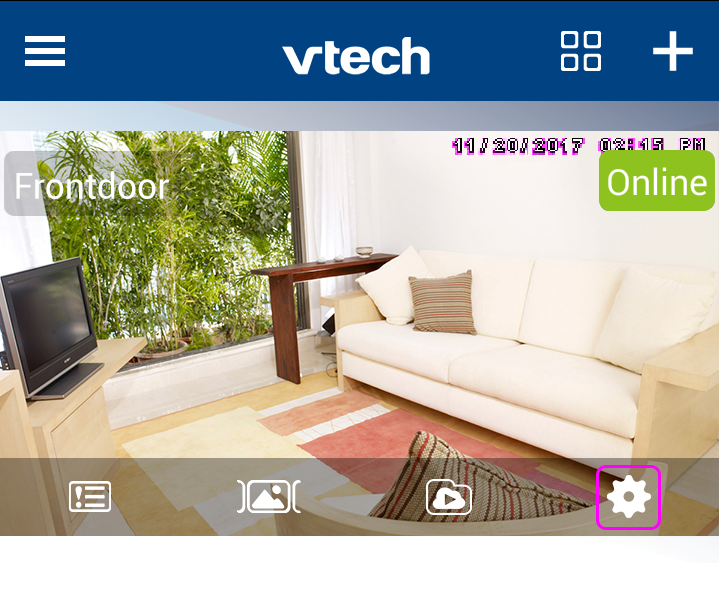
1. Tap  icon to enter the Camera Settings menu.
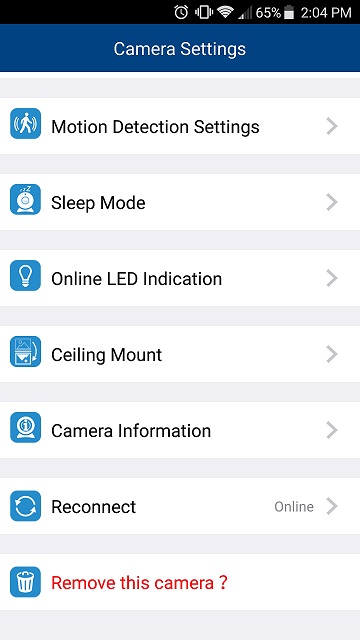
2. In the Camera Settings menu, scroll down to "Remove this camera?"
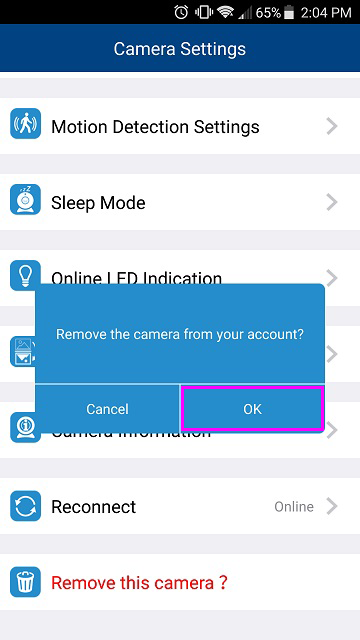
3. Tap OK to confirm.
How can I change the camera settings ?
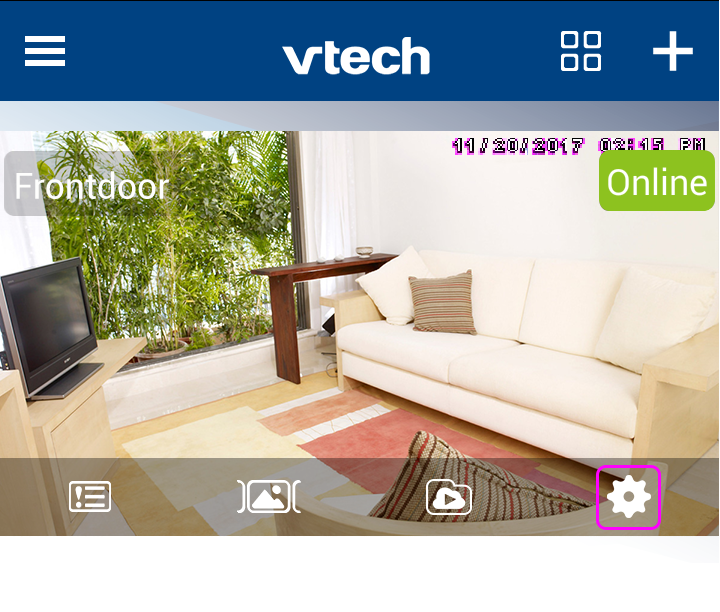
You can change the camera settings by tapping the icon in the camera view to enter the Camera Settings menu.
How to play, share, or delete videos recorded by your camera (iOS)?
1. Tap 
2. Tap Videos at the top of screen.
- The video list displays.
3. Tap to select a desired video to play.
- The selected video plays automatically.
4. At the lower screen, you will find Share, Play/Pause, and Delete icons. Tap to select.
https://vtech.zendesk.com/